By Doug Ward
A chatbot in Adobe Acrobat became available to KU users last month after a new contract with Adobe took effect. The company had added a chatbot to Acrobat a couple of years ago, but KU had blocked access.
You will find the bot, known as AI Assistant, on the upper right side of the Acrobat app.
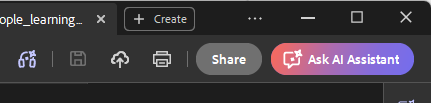
I have found it surprisingly good. It can summarize documents, but it has many other functions available, including:
- Creating presentations and podcasts from PDFs.
- Providing explanations of complex contracts
- Asking questions of large documents
- Creating study guides and practice questions for exams
The chatbot provides citations for its responses and allows you to click through to cited areas of a document.
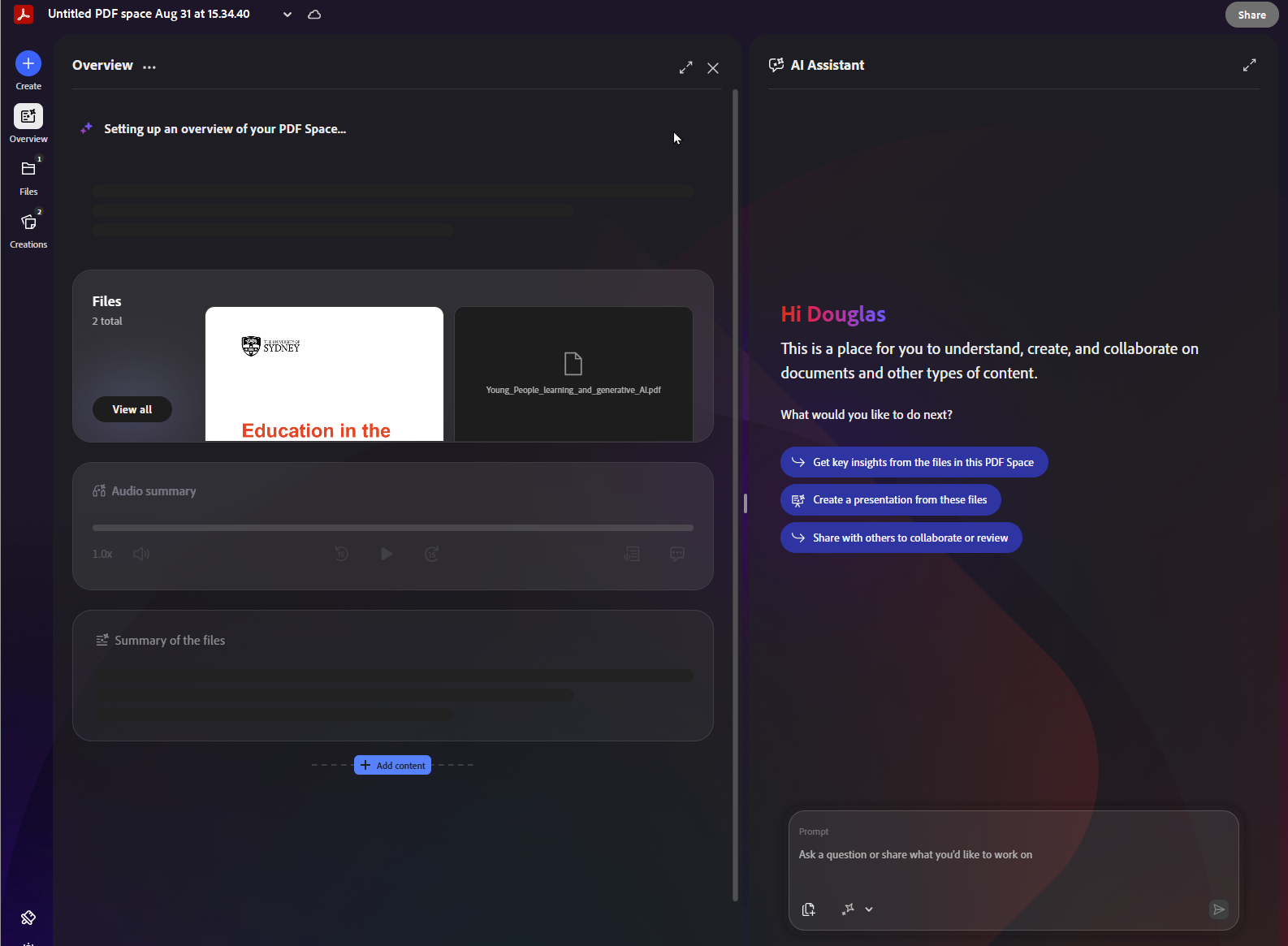
A familiar notebook-style app
Adobe has also added what it calls PDF Spaces, which allows you to use the AI tool with up to 100 files. You can open PDF spaces by clicking on a button on the upper right side of the app. That opens a new space, with documents on the left side and a chat interface on the right. The area on the left uses a card design, with separate boxes displaying an overview, the files included in the space, a text summary, and a podcast of the documents.
A Files button opens a list of your documents in the space, along with an option for adding additional files. Those include PDFs, of course, but also Word documents, PowerPoint decks, Excel files, text files, rich text format files, and video text track files. You can import from Google Drive, OneDrive, SharePoint, Dropbox, Box, and Adobe’s online storage. You can also include links from websites or paste in notes, which are then converted to PDFs.
If all this sounds familiar, it’s because Adobe has essentially created its own version of Google’s popular Gemini Notebook.
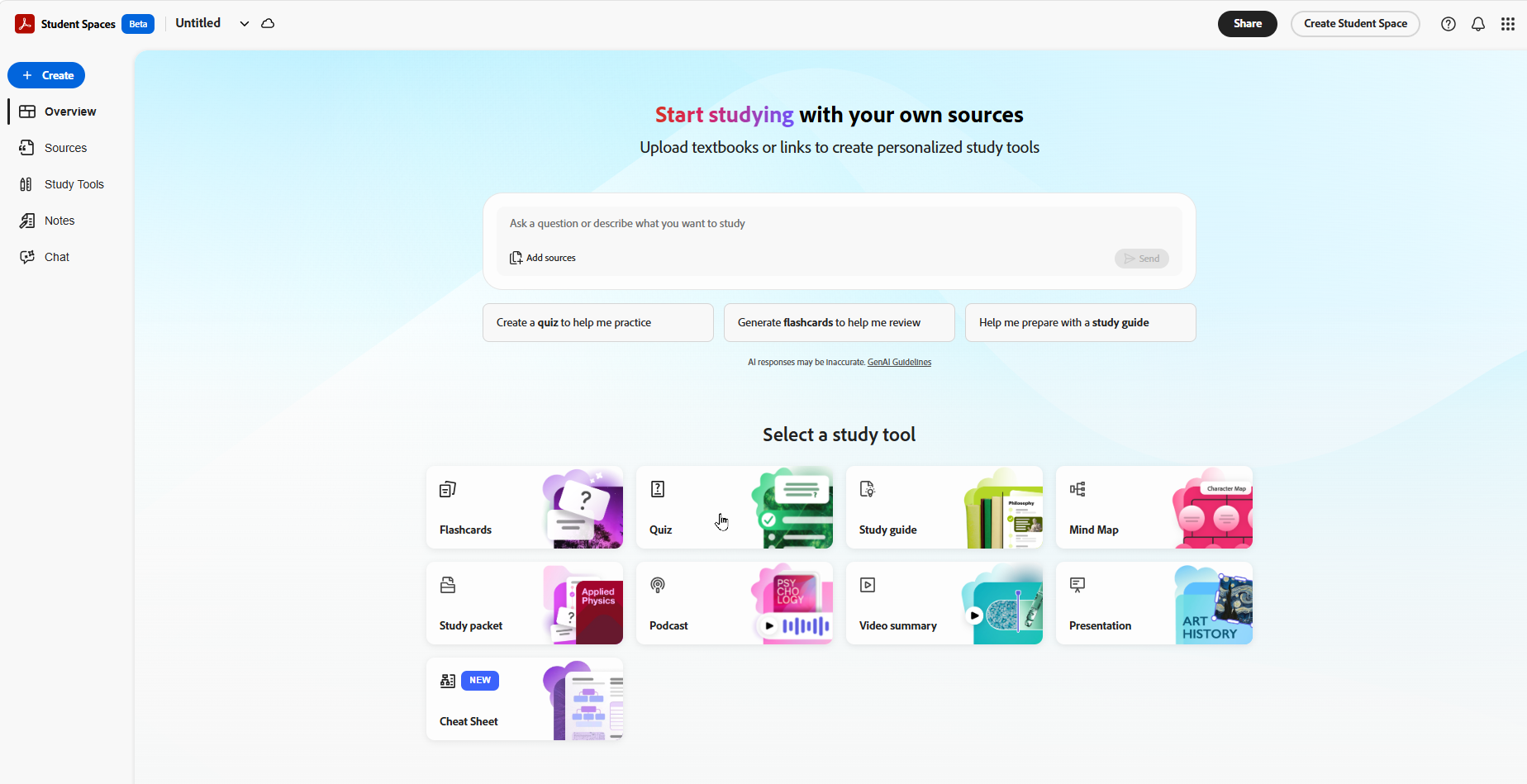
A similar web-only tool called Student Spaces looks even more like Gemini Notebook, although it has a much more colorful interface. Like Gemini Notebook, it offers the ability to create such things as podcasts, videos, mind maps, study guides, presentations, quizzes, and study packets from the materials you upload.
You can also invite others to work in the PDF Spaces and Student Spaces you create.
I haven’t dug too deep into the Spaces tools, so I can’t say how they compares with either Gemini Notebooks or Copilot Notebooks.
Privacy
Adobe’s enterprise privacy agreement seems similar to that for Microsoft, meaning that collection of user data is minimal. Adobe’s AI Assistant uses Microsoft Azure OpenAI Service, which forbids use of customer data for training of large language models.
Users must sign in with their KU credentials for this to take effect.
If you don’t want the AI features on your Adobe app, you can disable them. Go to Preferences and Generative AI, and then uncheck the box next to “Enable generative AI features.”
There don’t appear to be restrictions on how many queries you can give the AI Assistant, but Adobe says it is “subject to throttling” if users submit too many requests.